Kinsta: a managed WordPress host on Google Cloud, behind Cloudflare
Kinsta sells only one thing for WordPress: high-end managed hosting, on Google Cloud and behind Cloudflare. This article covers its plans and prices, its technical stack, what Kinsta handles in terms of security, its constraints (banned plugins, no .htaccess, no email) and how to install and secure a site there.
To see where Kinsta stands against the others, check our comparison of WordPress hosts. Disclosure: we have no account with Kinsta and measured nothing ourselves; everything comes from Kinsta’s documentation and official pages. No link is an affiliate link.
Kinsta at a glance
- Company: Kinsta Inc., an American company (terms of service governed by Delaware law), founded in 2013.
- Business: managed WordPress hosting. Application, database and static site hosting moved to a separate brand, Sevalla, in early 2026.
- Data centers: 30 locations to choose from on Google Cloud Platform, including Paris since 2022, London, Frankfurt and Saint-Ghislain (Belgium) in Europe.
- Network: all traffic goes through the Cloudflare integration; the site’s IP address is a Cloudflare address reserved for Kinsta customers.
- Size: Kinsta claims more than 230,000 business customers and SOC 2 Type II and ISO 27001 certifications.
Kinsta’s WordPress plans and their prices
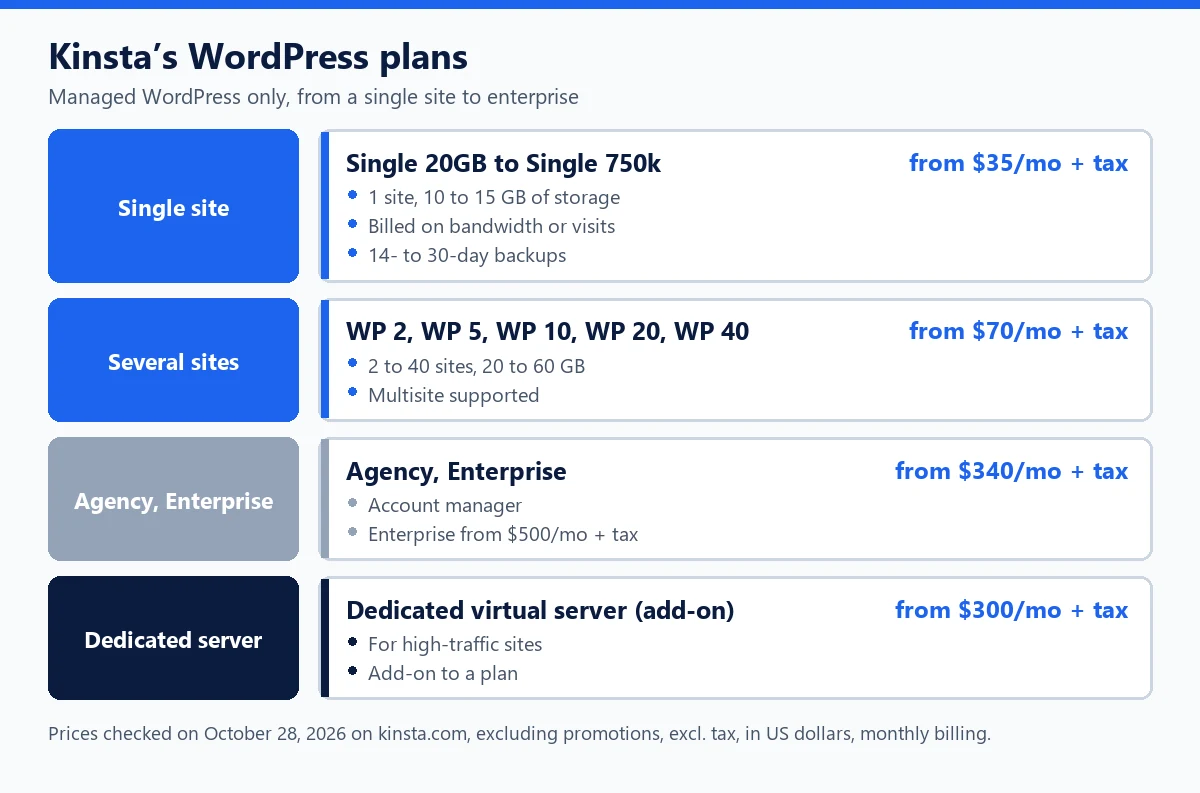
No entry-level shared hosting and no VPS to administer: everything is managed WordPress, run from the MyKinsta dashboard. Since October 2025, each plan comes in two variants at the same price, billed on bandwidth (Single 20GB) or on visits (Single 35k), a visit being a unique IP address over 24 hours. Public prices, excluding promotions, excl. tax, in US dollars; annual billing gives two months free, and the free first month on some plans is a promotion.
| Plan | Type | Starting price | Sites | Storage | Key limits |
|---|---|---|---|---|---|
| Single (Single 20GB to Single 750k) | Managed WordPress, single site | $35 per month excl. tax ($30 per month billed annually, $350 per year) | 1 | 10 to 15 GB | 20 GB of bandwidth or 35,000 visits per month, 125 GB of CDN, 14-day backups, no multisite on the entry-level plan |
| WP 2 to WP 40 | Managed WordPress, several sites | $70 per month excl. tax ($59 billed annually) | 2 to 40 | 20 to 60 GB | 40 to 500 GB of bandwidth or 70,000 to 750,000 visits, 14- to 20-day backups |
| Agency | Managed, site portfolio | From $340 per month excl. tax | Per contract | Per contract | Account manager |
| Enterprise | Managed, mission-critical sites | From $500 per month excl. tax | Per contract | Per contract | 30-day backups, account manager |
| Dedicated virtual server | Add-on to WordPress plans | From $300 per month | Your sites | Depends on configuration | For resource-hungry, high-traffic sites |
Add-ons are paid separately: backups every 6 hours ($20 per site per month) or every hour ($100), external backups, Redis cache ($100 per site per month), extra PHP memory ($10 per 500 MB), automatic plugin updates (from $3 per site per month). Beyond the quotas, the site stays online but the overage is billed. Kinsta does not host email.
Technical stack, tools and support
Each site runs in its own Linux container (Nginx, PHP, MariaDB) on a Google Cloud virtual machine, with 12 CPUs and 8 GB of memory by default for a live site. The database is in the same container: Kinsta states that it does not offer high availability spread over several instances.
| Item | At Kinsta |
|---|---|
| Web server | Nginx (no .htaccess file) |
| PHP | 7.4 to 8.5 (8.5 since March 2026; 7.4 and 8.0 maintained by Kinsta after their end of life) |
| Database | MariaDB 11.4 or higher |
| Protocols | HTTP/2, TLS 1.3, CDN over HTTP/3 |
| Cache | Server page cache, Edge Caching at Cloudflare, CDN, Redis as an add-on |
| PHP concurrency | PHP “threads” (formerly PHP workers) and memory adjustable in MyKinsta |
| Access | SFTP, SSH on all plans, WP-CLI, Git client, Composer; no root access |
| Staging | One free per site, up to 5 “Premium” as an add-on |
| Support | Chat 24/7, in 8 languages; website, documentation and MyKinsta in French |
Caching is managed by Kinsta at server level (24-hour expiration by default), copied to Cloudflare’s data centers by Edge Caching, and complemented by the CDN for static files. You purge it in MyKinsta (Caching tab), from the admin bar thanks to the “Kinsta MU” plugin installed by default, or with wp kinsta cache purge. WooCommerce cart and checkout pages are excluded by default; for other dynamic pages, such as a login page, support adds the bypass rule.
Security at Kinsta
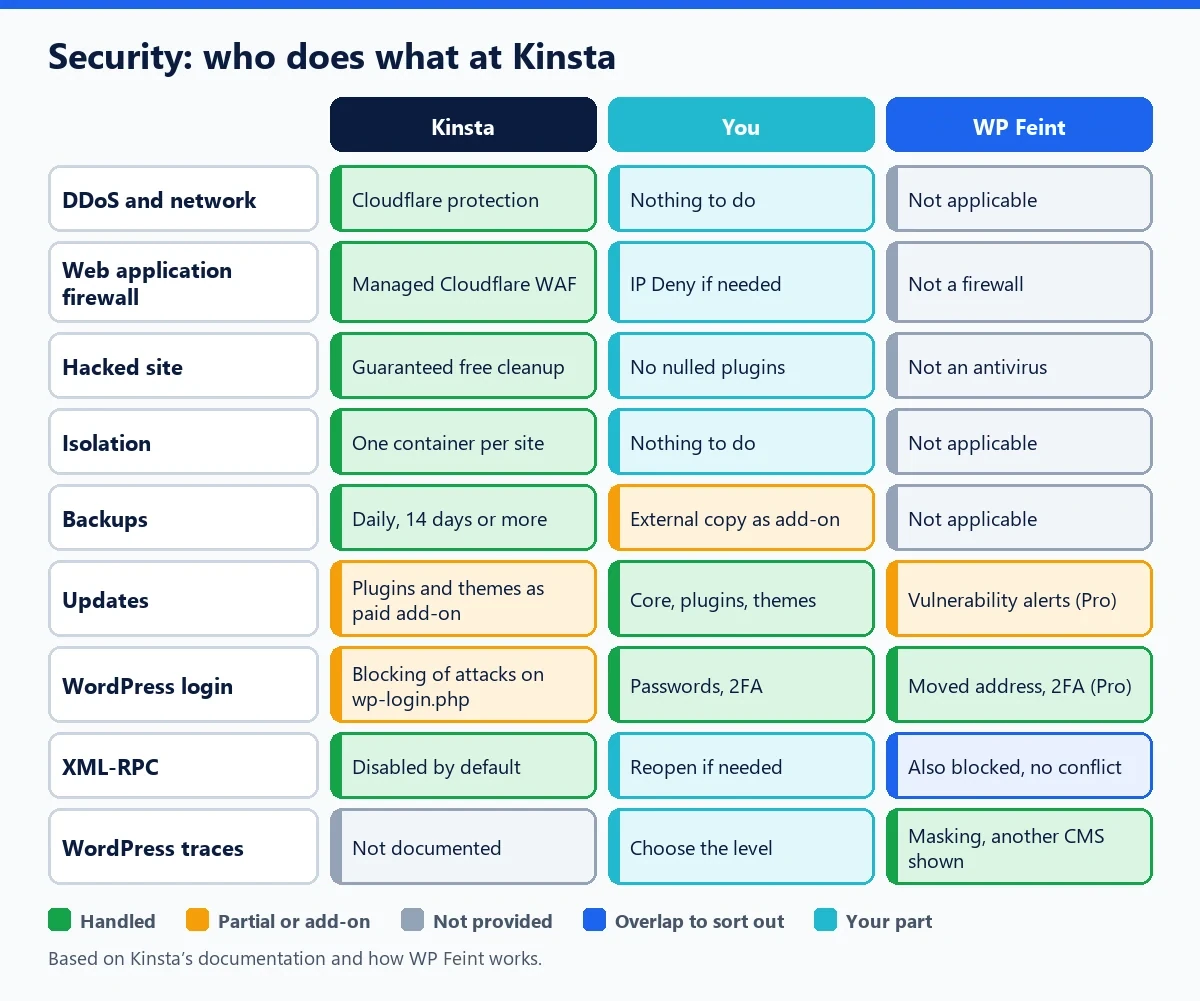
- Firewall and DDoS: a managed web application firewall (WAF), with rules updated by Kinsta, and Cloudflare DDoS protection on layers 3, 4 and 7. Only ports 80 and 443 are open to web traffic.
- Brute force and XML-RPC: Kinsta detects brute force attacks on
/wp-login.phpand blocks their sources across its whole infrastructure; rate limits protect the most targeted WordPress addresses. Access toxmlrpc.phpis disabled by default; support reopens it if a service like Zapier needs it. - Addresses and bots: the IP Deny tool blocks addresses or ranges at Cloudflare, before the server. Since May 2026, bot protection (in beta) offers four levels, AI bot management and exceptions.
- Isolation: one container per site, not shared even between your own sites.
- Malware: free cleanup if you are hacked (“hack-fix guarantee”), unless you use a pirated (“nulled”) plugin; free cleanup also for a site infected when it is migrated.
- Backups: daily, kept for 14 days on the smaller plans (30 days on Enterprise), plus 5 manual ones and system backups before each restore or staging push. They are stored on the same machine as the site.
- HTTPS: free Cloudflare certificates, including wildcards, renewed automatically.
- MyKinsta account: mandatory two-factor authentication (code by email or app), temporary lockout after repeated failures since July 2025, SAML single sign-on.
- Updates: plugin and theme updates can be automated with visual comparison and rollback, as a paid add-on. The rest is up to you.
Incidents: to our knowledge, we found no publicly documented customer data breach. The official status page reports localized outages, for example at the Amsterdam data center in June 2026 and at the London one in January and June 2026.
To go further: our comparison of web application firewalls for WordPress and our guide to hardening PHP on a hosting account.
Kinsta’s strengths and weaknesses
| Strengths | Weaknesses |
|---|---|
| Cloudflare built in by default: WAF, DDoS, edge caching, certificates | High price: $35 per month excl. tax for a single site, without email |
| One isolated container per site, data center of your choice (including Paris) | No .htaccess or access to the Nginx configuration: every rule goes through support |
| Free cleanup if hacked | Cache and backup plugins and some optimizations banned |
| Mandatory two-factor authentication on MyKinsta | Backups on the same machine; external copy and higher frequency are paid |
| 24/7 support in 8 languages, SSH, WP-CLI and staging included | Visit or bandwidth quotas, with overage fees |
| PHP from 7.4 to 8.5 | No high availability; automatic plugin updates are paid |
Kinsta charges a lot for what it takes away from the site owner (cache settings, server configuration), but the network layer and the infrastructure are far more polished than classic shared hosting. For the same budget, WordPress hosting at Hostinger offers many more sites and email, on shared infrastructure.
Who is it for?
- A good fit: a WooCommerce store or site whose revenue depends on uptime, an agency managing client sites with staging and role-based access, a business happy to leave caching and network to the host.
- A poor fit: a personal blog or small brochure site on a tight budget, a project that wants email included, a developer who wants root access or self-service server rules.
For European hosting with email, compare with Infomaniak’s WordPress plans; for a more classic American host, see WordPress hosting at DreamHost and its DreamPress offer.
Getting started: installing and securing WordPress at Kinsta
- Create the site in MyKinsta (“Add site”): WordPress installation, free migration or cloning. Choose the data center closest to your visitors (Paris for a French audience); moving it later goes through support.
- Switch MyKinsta two-factor authentication to an app (User settings) rather than email, and give each team member their own access.
- Choose the PHP version: Tools tab, “PHP settings”. Prefer a version maintained by the PHP project and test it on staging first.
- HTTPS: add and verify your domain, and the certificate is issued automatically; check that the site address in Settings > General starts with https.
- Backups: daily backups are automatic (Backups tab, one-click restore). Add a copy outside Kinsta (external add-on or an allowed incremental plugin), following the 3-2-1 backup rule.
- Staging before any major update: see our guide to WordPress staging.
- XML-RPC is already closed: only ask for it to be reopened if a service requires it (see why disable XML-RPC).
- Two-factor authentication in WordPress for administrators: our guide to WordPress two-factor authentication compares the methods.
- Updates: turn on WordPress updates and, without Kinsta’s add-on, updates for trusted plugins (see automatic updates). Before installing a cache or backup plugin, check the list of banned plugins: their installation is blocked.
WP Feint on Kinsta
Feint Security and WP Feint Pro are not on Kinsta’s list of banned plugins. For security plugins, Kinsta does not ban the category but warns that its Cloudflare integration can interfere with some features, such as IP address blocking. Here are the points specific to Kinsta, based on how WP Feint works and according to Kinsta’s documentation.
- Nginx, so no .htaccess: the file the plugin places in its folder has no effect. To make its folders return 404, ask support to add this line to the Nginx configuration:
location ~ ^/wp-content/plugins/feint-security(-pro)?/(?!assets/) { return 404; } - Pro address aliases: choose the Nginx server type, and the plugin generates the exact block to send to support. Kinsta adds the rules but does not convert .htaccess: send the Nginx version, then click “Check and activate”. Everything else, including the whole free version, works without any server rule.
- Cache: WP Feint does not purge Kinsta’s cache. After enabling the masking, clear the server cache, edge cache and CDN (MyKinsta or Kinsta MU), and ask support to exclude your new login address from the server cache and Edge Caching before testing it.
- Real visitor address: Cloudflare is always in front of the site. Pro reads the CF-Connecting-IP header only if the connection comes from Cloudflare’s official ranges. The Kinsta documentation we consulted does not say in what form the visitor’s address reaches PHP: look at the plugin’s diagnostics and ask support; if the server already restores it, set the option to Disabled. Our article on Cloudflare in front of WordPress explains what is at stake.
- Overlaps: Kinsta already closes XML-RPC (the plugin’s blocking is an overlap without conflict) and protects
wp-login.php. Once the login is moved,wp-login.phpreturns 404 and the new address is covered by Pro’s login limiting and two-factor authentication. Keep only one two-factor authentication in WordPress.
The WP Feint compatibility with hosts and caches page details these cases, and the login page, file addresses and Cloudflare pages their settings. Test on staging first.
What the plugin brings: a smaller visible attack surface (WordPress hidden, login moved, plugin folders closed) and, with Pro, two-factor authentication, login limiting, security headers and alerts. What it does not do: it is not a firewall, an antivirus or a backup, roles handled here by Cloudflare and Kinsta.
Our take on Kinsta
Kinsta is professional-grade WordPress hosting: built-in Cloudflare, container isolation, guaranteed cleanup, mandatory two-factor authentication and round-the-clock support. The price, the quotas, the lack of email and the reliance on support for any server rule make it best suited to revenue-generating sites and agencies; for a blog, good shared hosting is often enough. See how Kinsta compares with the others in our ranking of web hosts for WordPress, and choose among the best WordPress security plugins those that are allowed at Kinsta.
Coming from another host? Our guide to migrating a WordPress site to a new host covers a zero-downtime switch, from the TTL to the rollback plan.
Key takeaways
- Kinsta only does managed WordPress, from $35 per month excl. tax for one site (excluding promotions), without email.
- Cloudflare is always in front of the site: WAF, DDoS, certificates and edge caching included.
- Nginx server without .htaccess: every server rule, including WP Feint’s, goes through support.
- Cache and backup plugins are banned; purge the cache with MyKinsta or Kinsta MU.
- Daily backups kept for 14 days on the same machine: plan an external copy.
Sources
- Kinsta Docs: Infrastructure (January 13, 2026) (external link, opens in a new tab)
- Kinsta Docs: WordPress Backups (January 21, 2026) (external link, opens in a new tab)
- Kinsta Docs: SSH (external link, opens in a new tab)
Other sources consulted: official pages of the hosting provider.