Diagnostics that start with your server
The Diagnostics tab shows the reported web server, your PHP and WordPress versions, installed plugins, mu-plugins, recognized caches and known conflicts. This inventory stays local: it is never sent to any third-party service.
Ready-to-copy rules for each server (Pro)
The file URL aliases in WP Feint Pro need a server-side rewrite rule. Every other module, including the entire free version, works without any server rule. The plugin generates the exact block that matches your settings; it never edits your configuration files on its own.
| Server | Where the rules go | What to check |
|---|---|---|
| Apache 2.4 | .htaccess at the domain root | mod_rewrite and AllowOverride |
| LiteSpeed Enterprise | Your host’s rewrite rules, often .htaccess | Order relative to the cache |
| o2switch (PowerBoost) | .htaccess, at the very top, before # BEGIN LSCACHE and # BEGIN WordPress | Browser-based verification (TigerProtect) |
| OpenLiteSpeed | Virtual host rewrite settings | A reload is often required |
| Nginx | server block, before other rewrites | nginx -t, then reload |
| IIS | system.webServer/rewrite/rules in web.config | URL Rewrite module, without replacing the file |
| Caddy 2 | Ordered route before php_fastcgi and file_server | caddy validate, then reload |
On managed hosting, just send the block to your server administrator.
o2switch: built with TigerProtect in mind
On o2switch, TigerProtect blocks requests a site makes to itself. WP Feint Pro detects this and verifies the aliases from your browser instead: each test file is downloaded and compared with the original. An “o2switch / PowerBoost” mode is available if automatic detection is unclear.
Page caches
| Caching plugin | What WP Feint does | What you need to do |
|---|---|---|
| LiteSpeed Cache | Purges through its API, marks login responses as non-cacheable | Exclude the login URL (Do Not Cache URIs) |
| WP Rocket | Purges through its API | Exclude the login URL (Never Cache URL(s)) |
| WP Super Cache | Purges through its API | Add the login URL to the rejected URL strings |
| Other cache or CDN | Shown in the inventory | Purge with its own tool, exclude sensitive URLs |
With Pro, file URLs are also rewritten in the optimized output of LiteSpeed Cache and WP Rocket, as well as in inline scripts and JSON.
A page served straight from a server cache or a CDN never goes through WordPress, so the security headers sent by Pro and bot banning do not apply to it. The header check button shows what visitors actually receive.
Plugin files that scanners can’t see
Scanners spot plugins by requesting their readme.txt or translation files. WP Feint and WP Feint Pro each ship with an .htaccess file: on Apache, LiteSpeed and o2switch, their folder returns a 404 automatically. On Nginx, one line does the job:
location ~ ^/wp-content/plugins/feint-security(-pro)?/(?!assets/) { return 404; }Requirements
- WordPress 6.9 or later, PHP 7.4 or later;
- Single-site WordPress: multisite is not supported;
- the site and WordPress must share the same base URL; installs in a subfolder are supported.
Limitations and precautions
- Use only one page caching engine. A purge request does not prove that every cache at your host or CDN is empty.
- Having LiteSpeed Cache installed does not prove the server runs LiteSpeed: if in doubt, check with your host.
- Never remove existing protections (PHP restrictions, private files, firewall) to get the aliases working.
- Compatibility with every host, cache and plugin cannot be guaranteed: test on a copy of your site.
Behind Cloudflare? Pro uses visitors’ real IP address, sent by Cloudflare and verified, for login attempt limiting, banning and logs. See Cloudflare support.
Start free, upgrade to Pro when you’re ready
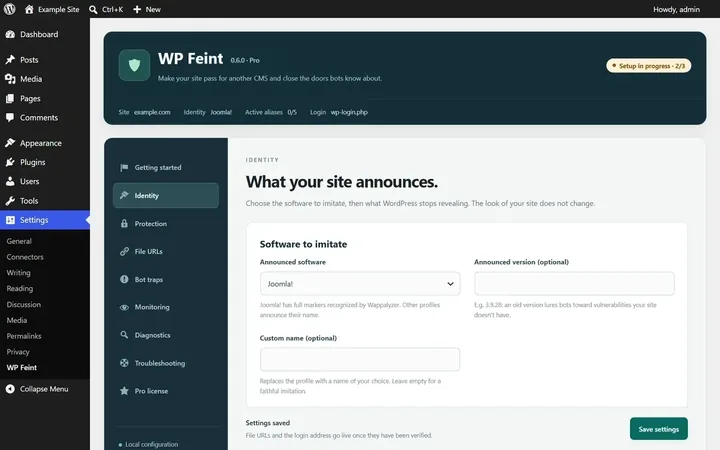
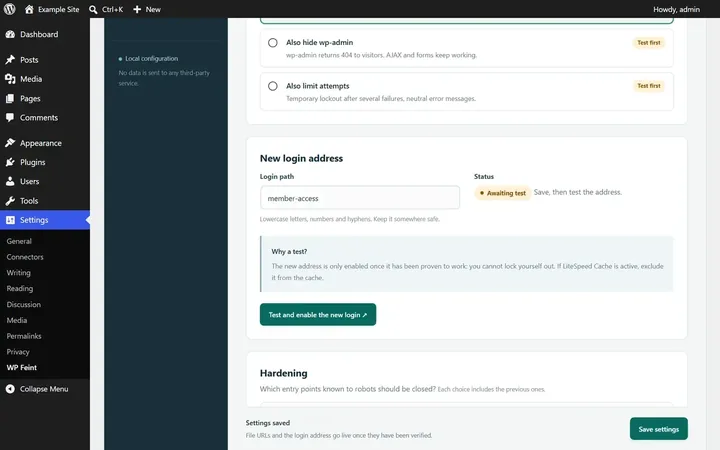
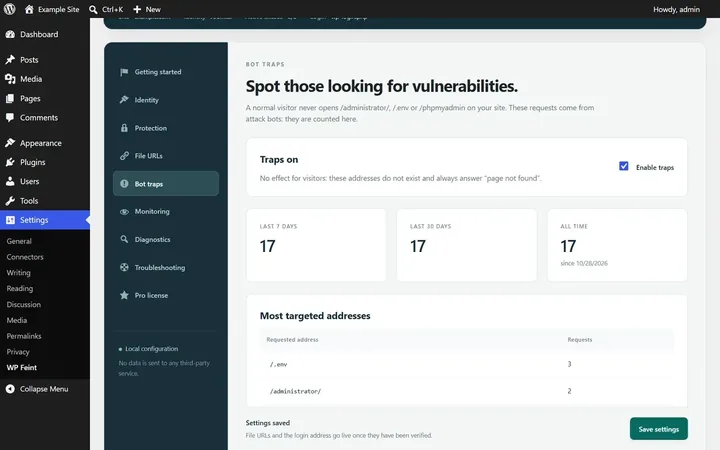
The free version already hides WordPress, moves the login page, blocks XML-RPC and counts bots. Pro locks down logins, renames file URLs and monitors your sites for you: known vulnerabilities, core integrity, activity log, email alerts and the update status of all your sites in your member area. From €59 per year excl. tax, far less than the cleanup offers whose prices we checked. Compare the costs.