The free plugin Feint Security is coming soon to WordPress.org. What it does, how to install it, and how to move up to WP Feint Pro.
Free version FreeFree feature
WordPress hidden and an authentic generator tag for 5 profiles (Joomla!, Drupal, PrestaShop, TYPO3, MediaWiki) or a name of your choice; basic technical links removed; plugin HTML comments and generator tags removed; custom login URL with wp-login.php and wp-admin hidden; pingbacks and XML-RPC blocked; trapped bots counted; admin in 7 languages.
Publication in the official WordPress.org directory is in progress. Meanwhile, download the ZIP file here and upload it in Plugins → Add New Plugin → Upload Plugin.
WP Feint Pro ProPro feature
Includes the free version and adds everything else: 41 profiles, file URL aliases, unknown AJAX requests answered with 404, two-factor authentication, login attempt limiting, security headers and, above all, active monitoring: integrity check, vulnerable plugin alerts, activity log, email alerts, bot banning and the update status of all your sites in your member area. From €59 per year excl. tax. You download it after purchase in your member area, where the “Install WP Feint” tab guides you step by step through activation.
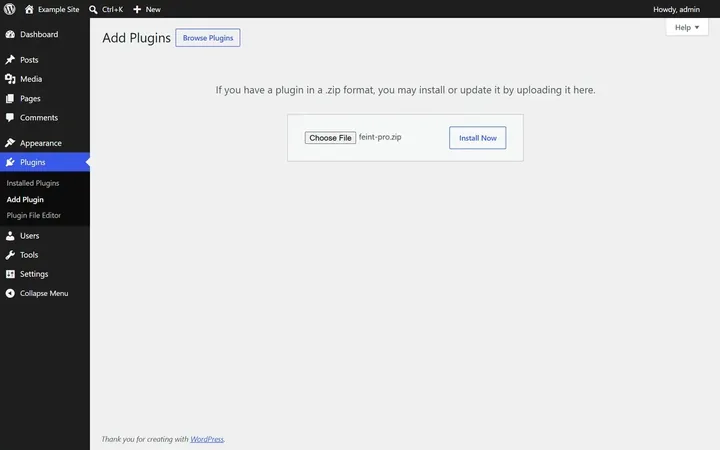
Plugins > Add New > Upload Plugin: choose the wp-feint-pro.zip file from your account, then click Install Now.
Left and right arrow keys: previous or next step.
Install the plugin
Plugins > Add New > Upload Plugin: choose the wp-feint-pro.zip file from your account, then click Install Now.
Activate it
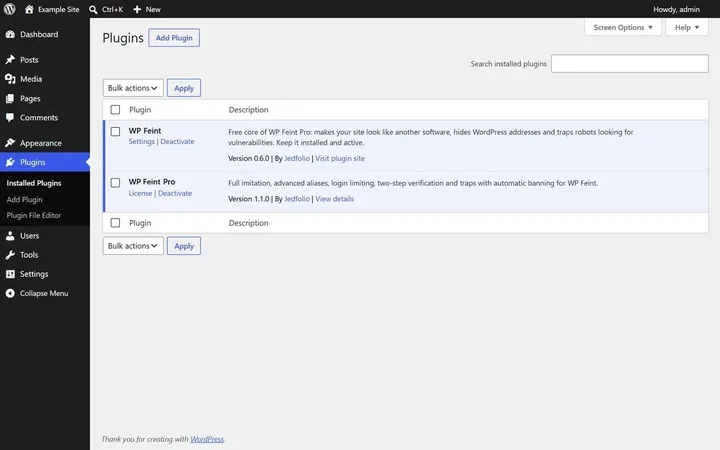
Activate WP Feint and WP Feint Pro, then open the settings with the Settings link.
Follow the checklist
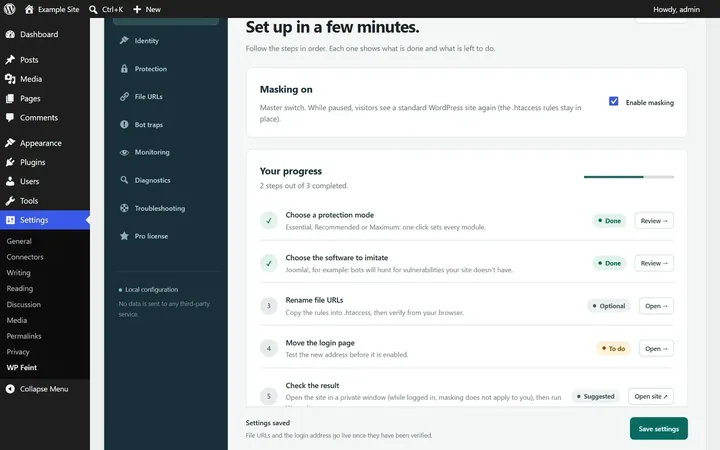
The Getting started tab shows what is done and what is left to do, one step at a time.
Pick a protection mode
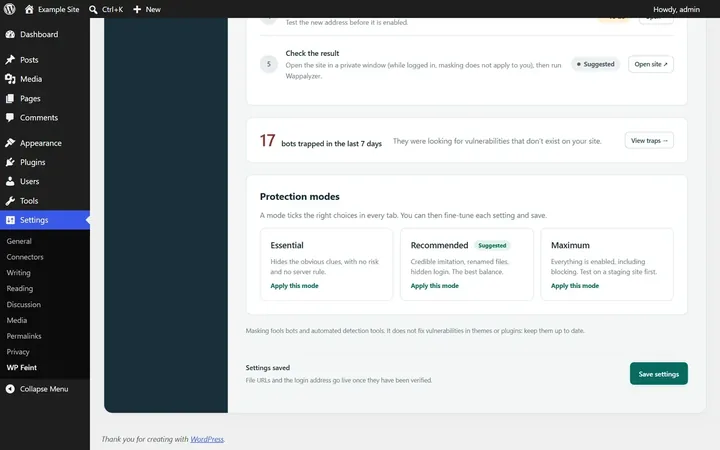
Essential, Recommended or Maximum: one click ticks the right choices in every tab. You can fine-tune each setting afterwards.
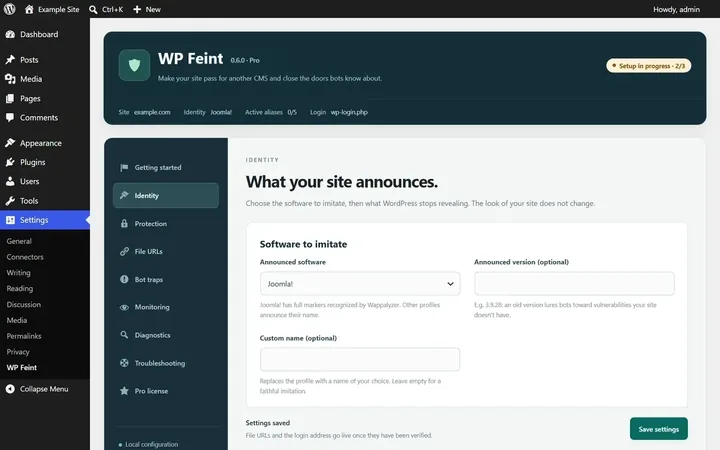
Choose the software to imitate
Joomla!, for example: bots then hunt for vulnerabilities your site does not have. The look of your site does not change.
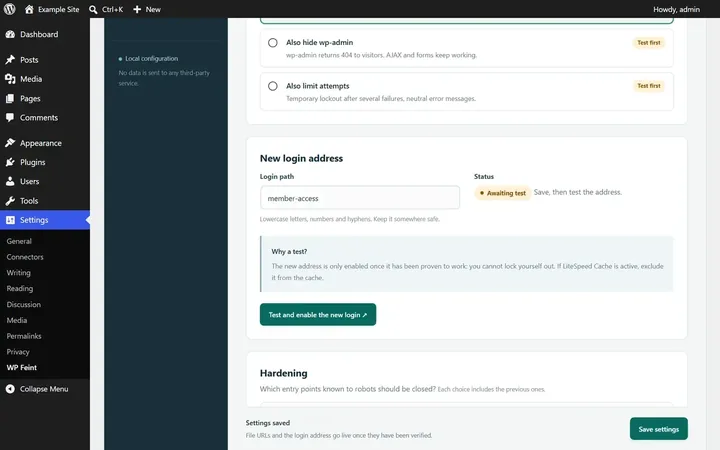
Move the login page, safely
Choose a new login address, then test it: it is enabled only once it has been proven to work, so you cannot lock yourself out.
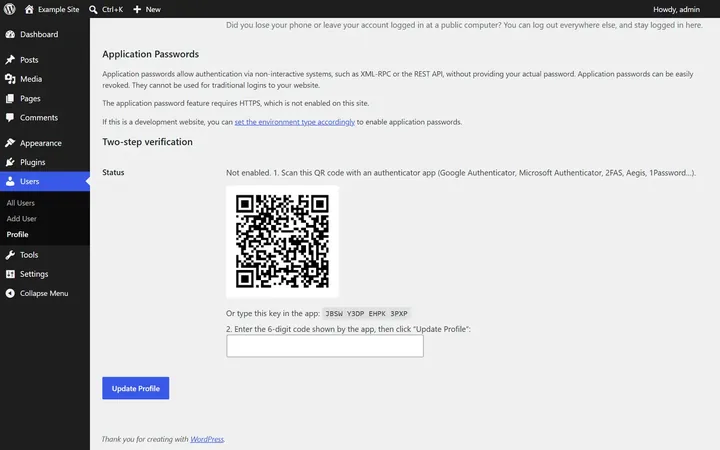
Turn on two-step verification
Scan the QR code with an authenticator app, then enter the 6-digit code it shows. A stolen password is no longer enough.
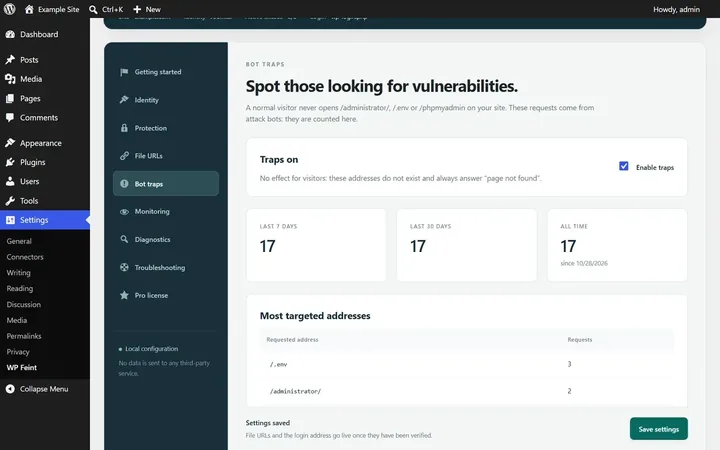
Watch the bots fall into the traps
Requests for /.env, /administrator/ or /phpmyadmin come from attack bots: they are counted, with the most targeted addresses.
Get alerted about vulnerabilities
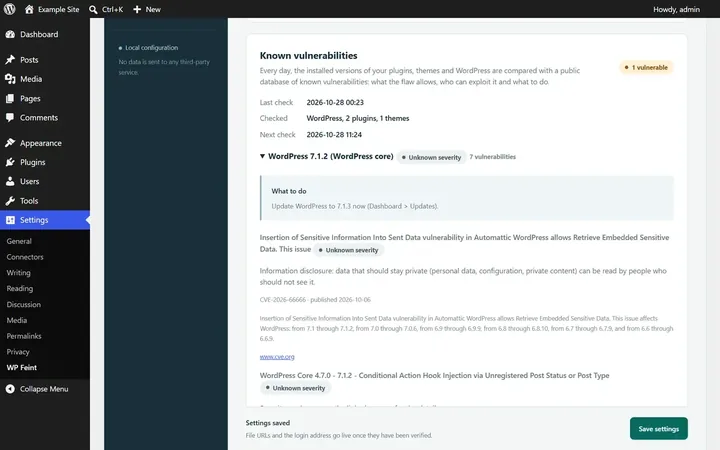
Every day, your plugins, themes and WordPress are checked against a public database of known vulnerabilities, with what to do. Alerts can go by e-mail.
Activate your licence
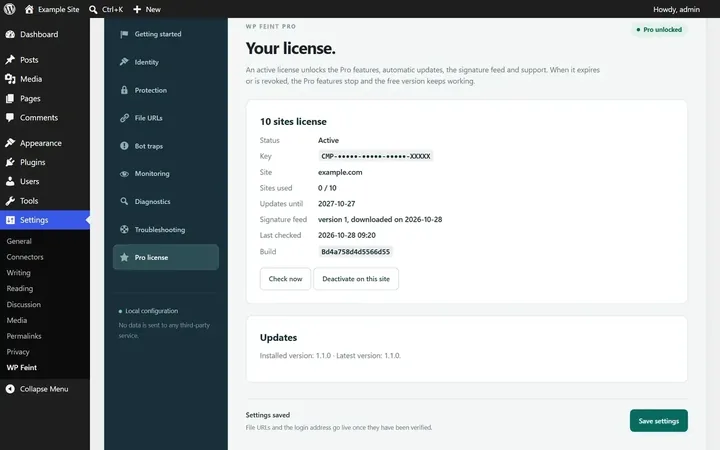
Your licence key unlocks the Pro features, automatic updates and the signature feed. You can check it or move it to another site at any time.
Requirements
WordPress 6.9 or later (tested up to WordPress 7.1);
PHP 7.4 or later;
a single-site WordPress install: multisite is not supported;
for file aliases (Pro): access to .htaccess or the server configuration (see compatibility).
Try the free version
This is for anyone who wants to use Feint Security, the free version, or to try it before buying. Pro customers can skip it: WP Feint Pro includes every free feature and installs on its own.
Back up your files, your database and your server configuration. Ideally, install on a copy of the site first.
In Plugins → Add New, search for “Feint Security” (once it’s published) or click Upload Plugin to upload the ZIP file. Activate the plugin.
Open Feint Security (the mask icon in the admin menu). Until camouflage is turned on, nothing changes.
Follow the Getting started tab: choose a mode and the software to imitate, then test and activate the new login URL.
Check the site in a private browsing window, with a tool like Wappalyzer.
Install WP Feint Pro
Your member area follows these steps with you: the Install WP Feint tab shows where you are, provides the files and generates your activation code.
Install and activate WP Feint Pro in 6 steps
1Buy a planSecure payment with Stripe.StripeLIC-7KQ2-M9XD
2Download WP Feint ProA single ZIP file, from your member area.wp-feint-pro.zip
3Upload it to WordPressPlugins > Add New Plugin > Upload Plugin..zipWordPress
4Activate the pluginNothing else to install: Pro includes everything.WP Feint Pro
5Generate an activation codeOne code per site, for its address.www.example.comACT-7KQ2X-…
6Paste the codeIn WP Feint > Pro license: the site is activated.ACT-7KQ2X-…www.example.com
1. Buy a plan: Secure payment with Stripe. 2. Download WP Feint Pro: A single ZIP file, from your member area. 3. Upload it to WordPress: Plugins > Add New Plugin > Upload Plugin. 4. Activate the plugin: Nothing else to install: Pro includes everything. 5. Generate an activation code: One code per site, for its address. 6. Paste the code: In WP Feint > Pro license: the site is activated.
Buy a license on the Pricing page. The key (it starts with WFP-) appears right away and is also sent by email: keep it as the reference of your license, you do not type it into your sites.
Download the WP Feint Pro ZIP, go to Plugins → Add New → Upload Plugin, and activate it. One plugin is all you need: if the free version is already installed, keep it or delete it, your settings are kept.
In your member area (My account, Licenses tab), open the license, then the “Activation codes” block: type the site address (for example www.example.com, or example.com/blog for WordPress installed in a subfolder) and click “Generate the code”. The code (ACT-XXXXX-XXXXX-XXXXX) works once, only for that address, with or without www., and is valid for 7 days. For several sites, type one address per line (up to 20 at a time).
Open WP Feint → Pro license, paste the code and click “Activate license”. The number of new site activations per 24 hours depends on the plan: 5 for the 1-site plan, 10 for the 10-site plan, 25 for the 50-site plan and 50 for the lifetime license.
Pro options unlock in every tab; your current settings are kept.
Need help? The documentation walks through every step and what to do if something goes wrong.
Is your site already hacked? Installing a security plugin is not enough to repair it: WP Feint does not clean infected files. Start with our guide to cleaning a hacked WordPress site, change all passwords, then install WP Feint to close the doors attackers target and be alerted earlier.
Start free, go Pro when you’re ready
The free version already hides WordPress and moves the login page. Pro adds aliases, two-factor authentication and monitoring.