A redirect to a gambling site, a red warning in Chrome, an administrator nobody knows: not all of these signs prove a hack, and a compromised site can also look perfectly normal. This article gives you a method to settle the question in under an hour: the warning signs, the external and internal checks to run in order, the WP-CLI integrity commands and how to read the logs.
The signs that should alert you
The official WordPress documentation talks about indicators of compromise. Some are visible to everyone, others only to tools or to certain visitors. The following table sorts them by where to check them.
| Sign | What you see | Where to check first | Alert level |
|---|---|---|---|
| Browser warning | Red "dangerous site" page in the browser or a warning in search results | Search Console, "Security issues" report | High |
| Indexed spam pages | Japanese titles, pharmacy or counterfeit goods in Google results | A site:yourdomain.com search | High |
| Redirects | Visitors coming from Google or on mobile are sent to another site | curl test with Referer and User-Agent | High |
| Unknown accounts | Recently created administrator, changed recovery address | wp user list --role=administrator | High |
| Suspended site | The host has disabled the site or reports spam being sent | Email or support from your host | High |
| Modified files | Core files that differ from the original, PHP in uploads | WP-CLI checksums, scanner | Medium to high |
| Slowdowns, traffic spikes | Abnormal server load, POST requests to unknown files | Access logs | Needs confirmation |
A sign from the last row on its own is not enough: slowness can come from a poorly coded plugin or a wave of bots. Conversely, an unknown administrator account or a PHP file in the media folder justifies switching to "incident" mode immediately.
Why you see nothing while Google sees something
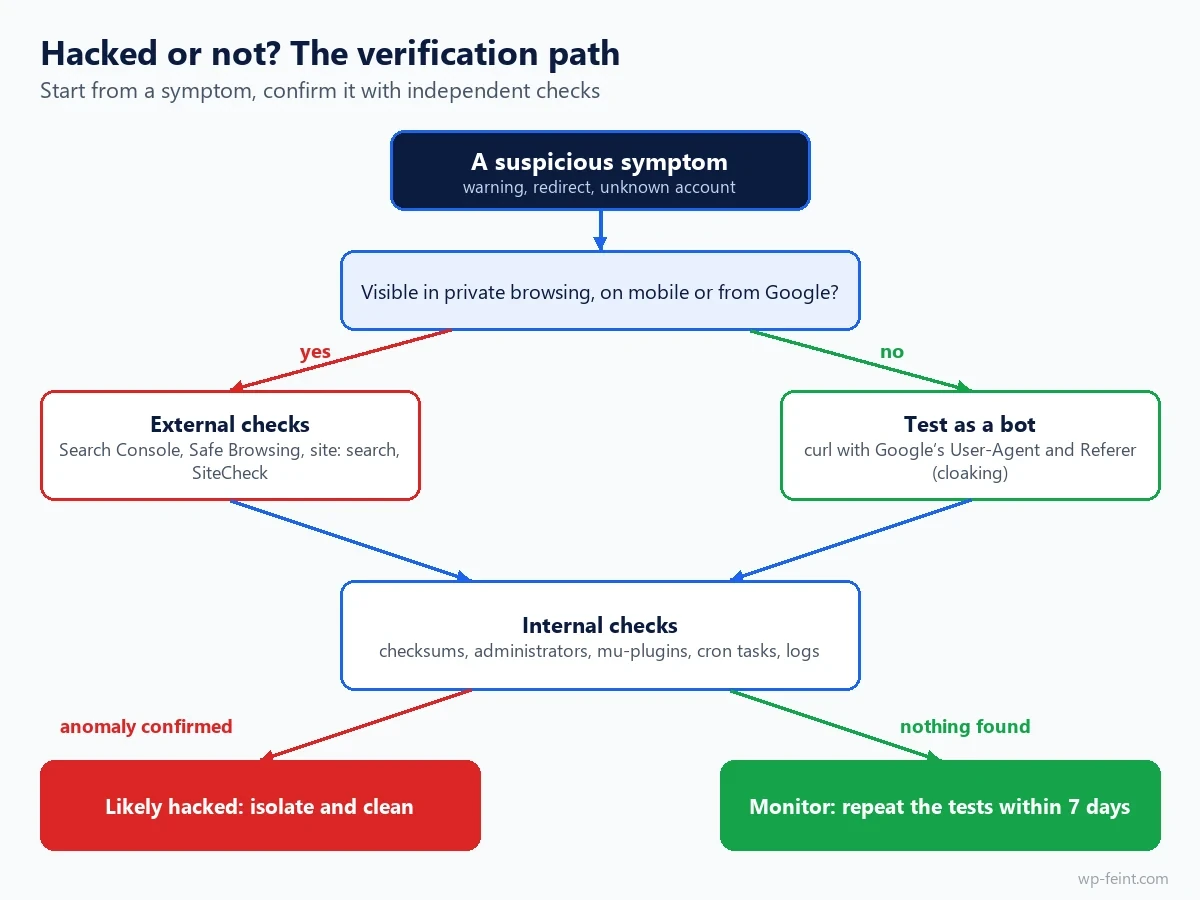
A lot of malware uses cloaking: it only shows the redirect or spam content to certain visitors. The usual criteria are the absence of a login cookie, arrival from a search engine (Referer header), the device type or the search engine crawler (User-Agent header). When you are logged in to your Dashboard, you therefore often see a clean site.
Google recommends not opening pages flagged as infected directly in a browser, and using the Search Console URL Inspection tool or curl instead, varying the Referer and User-Agent:
# As a visitor arriving from Google
curl -s -e "https://www.google.com/" -A "Mozilla/5.0 (Linux; Android 14) Mobile" https://yourdomain.com/ | head -50

# As Google's crawler
curl -s -A "Mozilla/5.0 (compatible; Googlebot/2.1; +http://www.google.com/bot.html)" https://yourdomain.com/ | head -50

# Headers only: an unexpected 301/302 redirect shows up immediately
curl -sI -e "https://www.google.com/" https://yourdomain.com/
Compare the responses with that of a plain request. A block of links, an unknown script or a Location header pointing to another domain in only one of the variants is a strong sign.
External checks, in ten minutes
- Search Console, "Security issues" report: Google sorts alerts there into hacked content (code, content or URL injection), malware and social engineering, with sample URLs.
- Search Console, owners and users: according to Google, an owner you do not know is a strong sign of compromise. Attackers add one to get their pages indexed and submit their own sitemaps.
- A
site:yourdomain.comsearch: go through several pages of results looking for URLs or titles that did not come from you. - Safe Browsing status: Google's Transparency Report shows whether your domain is currently flagged as dangerous.
- Remote scanners: Sucuri SiteCheck and VirusTotal examine what is publicly accessible. Sucuri itself states that SiteCheck detects nothing on the server side.
These checks require no server access: you can run them even if you do not manage the hosting. They do not prove the site is clean, because a silent backdoor leaves no trace visible from the outside.
Checking file integrity with WP-CLI
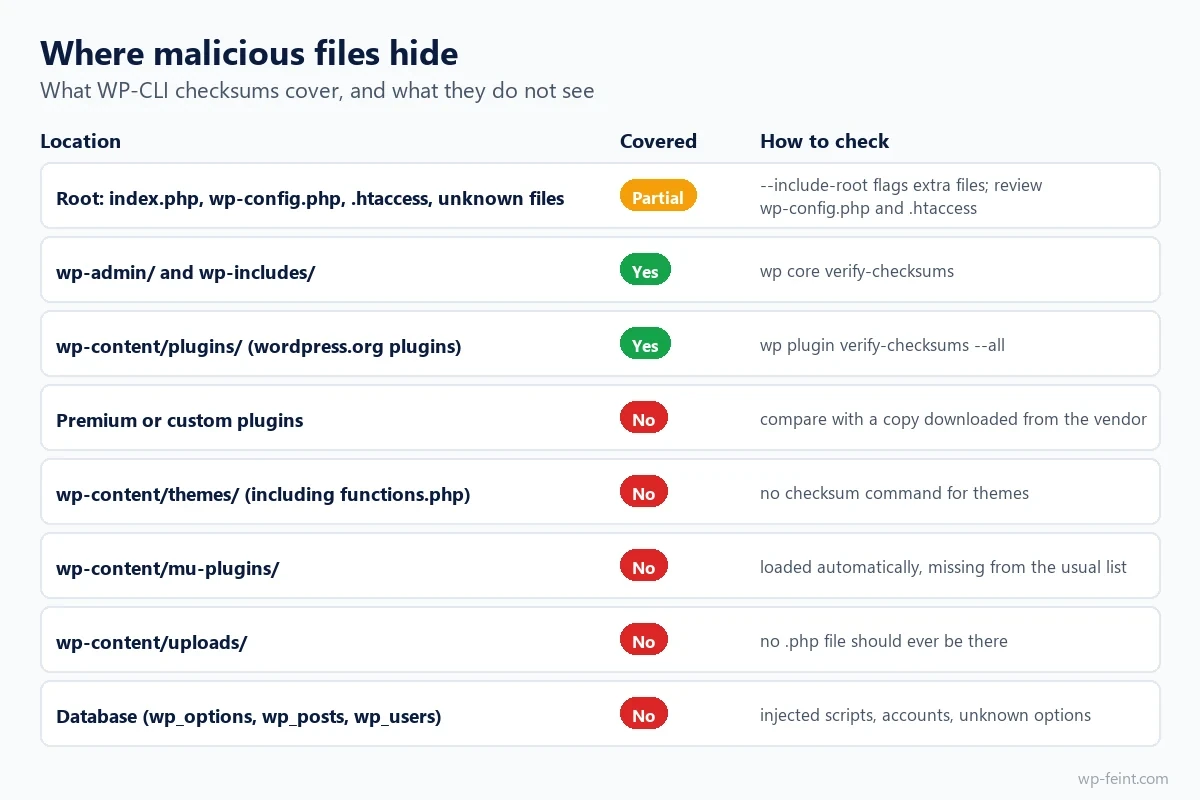
WP-CLI downloads the checksums published by WordPress.org and compares them with your files. This is the most reliable check for core and free plugins, and it does not load WordPress, so no malicious code runs during the check.
# WordPress core, also reporting unknown files in the root
wp core verify-checksums --include-root

# All plugins from wordpress.org
wp plugin verify-checksums --all

# PHP files in the media folder (there should be none)
find wp-content/uploads -type f -name "*.php"

# PHP files modified in the last 7 days
find . -type f -name "*.php" -mtime -7
Be clear about the limits of these commands:
wp core verify-checksumsreports modified core files. Without--include-root, a file added to the root (for example a fakewp-user.php) goes unnoticed.wp plugin verify-checksumsonly checks plugins published on wordpress.org. Premium plugins must be compared against an archive downloaded from the vendor.- WP-CLI offers no equivalent command for themes, yet the active theme's
functions.phpis a common hiding place. - A file's modification date is easy to fake: a file that looks old is not necessarily clean.
Accounts, hidden plugins and scheduled tasks
Attackers try to keep access even after a partial cleanup. The cases Sucuri published in 2025 show the common techniques: in July, a backdoor placed in wp-content/mu-plugins/wp-index.php created a hidden administrator named "officialwp"; in September, a fake "DebugMaster" plugin removed itself from the plugin list and filtered the user list, while a wp-user.php file in the root recreated the "help" account if it was deleted.
Since these accounts can be hidden in the Dashboard, query the database directly:
# Administrators, with registration date
wp user list --role=administrator --fields=ID,user_login,user_email,user_registered

# Must-use plugins and drop-ins, missing from the usual list
wp plugin list --status=must-use
wp plugin list --status=dropin

# Scheduled tasks: a hook with an unknown name deserves a closer look
wp cron event list- Plugins in the
mu-pluginsfolder load automatically, cannot be deactivated from the admin area and only appear under the "Must-Use" tab. - An administrator created on a date when nobody worked on the site, or with a disposable email address, should be treated as hostile.
- Also check access outside WordPress: FTP or SFTP accounts, SSH keys, database users, hosting control panel accounts.
Reading the server logs
Access logs answer two questions: since when, and through which door. Their location depends on the hosting: a dedicated section of the control panel on shared hosting, often /var/log/apache2/ or /var/log/nginx/ on a server you manage. The wp-content/debug.log file only exists if debug logging is enabled, and it must never remain public.
# POST requests to PHP files other than the usual entry points
grep "POST " access.log | grep -v -E "wp-login.php|admin-ajax.php|wp-cron.php|xmlrpc.php" | grep "\.php"

# Any access to a PHP file in the media folder
grep -E "/wp-content/uploads/.*\.php" access.log

# Most active IP addresses on the login page
grep "wp-login.php" access.log | awk '{print $1}' | sort | uniq -c | sort -rn | head
Repeated POST requests to an innocuously named file (for example in a theme folder) that return 200 are typical of a backdoor. Note the time of the first occurrence: it helps you choose a backup taken before the intrusion. Logs are often kept only briefly, so copy them before doing anything else.
Which tool for which check
| Tool | Type | What it sees | What it misses |
|---|---|---|---|
| Search Console | External, Google | Security alerts, indexed pages, added owners | Backdoors with no visible effect |
| Sucuri SiteCheck, VirusTotal | Remote scan | Malicious code in public pages, blocklists | Files on the server, database |
| WP-CLI (checksums) | On the server | Modified core and wordpress.org plugins, extra files in the root | Themes, premium plugins, uploads, database |
| Wordfence (scanner) | Plugin | Malware signatures, comparison with wordpress.org | Theme and plugin comparison disabled in the standard scan; free signatures delayed by 30 days |
| Access logs | Server | Timeline, requested files, IP addresses | File contents |
No tool covers everything. Combine at least one external check, a server-side integrity check and an account review. If a hack is confirmed, the next steps are in the step-by-step cleanup procedure. For the server-side scan, our comparison of the best WordPress security plugins shows which ones include a malware scanner.
Detecting it sooner next time
The best diagnosis is the one you do not have to run by hand. WP Feint Pro includes WordPress core integrity checking and email alerts with a weekly report. The free version already counts, with its bot traps, the bots probing for vulnerabilities or sensitive files. It is neither an antivirus nor a disinfection tool: it complements a scanner and your backups, it does not replace them.
To confirm a suspicion infection by infection, with the matching commands and SQL queries, see how to detect a hacked WordPress site.
Read also: WordPress site hacked: how to respond and fix it.
Key takeaways
- A site that looks normal when you are logged in can be infected: test in a private window and with
curlwhile posing as Google. - Start with Search Console (security issues and owners), then check files with
wp core verify-checksums --include-rootandwp plugin verify-checksums --all. - Check what checksums cannot see: the theme,
mu-plugins,uploads, premium plugins, the database. - List administrators from the command line, because they can be hidden in the Dashboard.
- Copy the logs right away: they date the intrusion and guide the cleanup.
Sources
- WordPress.org: FAQ My site was hacked (opens in a new tab)
- WP-CLI: wp core verify-checksums (opens in a new tab)
- WP-CLI: wp plugin verify-checksums (opens in a new tab)
- Google: Security Issues report (Search Console) (opens in a new tab)
Other sources consulted: official documentation, official vendor pages, security research publications and Wordfence database.