A backup is only worth something on the day it saves you. And on that day, people often discover that it was incomplete, stored in the same place as the site, or impossible to restore. The 3-2-1 rule exists to avoid these unpleasant surprises. This article explains how to apply it concretely to WordPress, how often to back up, and why a restore test is the only proof that counts.
The 3-2-1 rule explained
Formulated in the early 2000s by photographer Peter Krogh to protect his archives, then popularized in his book The DAM Book, the 3-2-1 rule comes down to three easy-to-remember numbers.
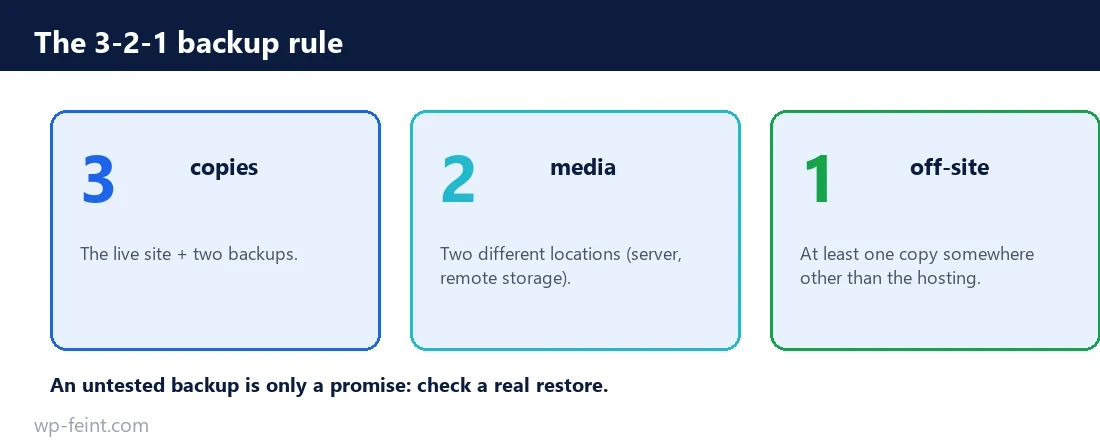
- 3 copies of your data: the live site, plus two backups. A single backup is a single point of failure.
- 2 different media: for example, the hosting on one side and remote storage on the other. If one medium fails, the other holds.
- 1 off-site copy, meaning somewhere other than the server that hosts the site. This is the one that saves you if the server is hacked, the data center burns down or the host shuts down.
The logic is never to depend on a single element. A hacked site whose only backup sits on the same server, compromised at the same time or encrypted by ransomware, has no safety net left.
Backing up a WordPress site means two things
A complete WordPress backup must include two parts. Forget either one and you end up with an unusable restore.
- The database: posts, pages, comments, users, settings, WooCommerce orders. This is the living content of the site.
- The files: WordPress core, themes, plugins and above all the
wp-content/uploadsdirectory that holds your media. Without them, the database points to images and layouts that no longer exist.
Many tools back up both, but check. Some solutions only cover the database, others exclude large files by default to save space. A partial backup gives a false sense of security.
How often?
The right frequency depends on what you are willing to lose. The real question is: if the site goes down now, how much data can I afford to lose? That acceptable interval sets the pace.
| Type of site | Recommended frequency | Reason |
|---|---|---|
| Brochure site that rarely changes | Weekly | Little new content between two backups |
| Active blog | Daily | A lost post represents work |
| WooCommerce store | Daily, or even continuous | Every lost order is an unhappy customer |
| Before a major update | On demand | To be able to roll back if the update breaks the site |
Also think about retention. Keeping only the latest backup is not enough: if a compromise goes unnoticed for a week, your only copy is already infected. Keeping several generations, over several days or weeks, lets you go back to a clean point.
The restore test, the only proof
A backup that has never been tested is only a promise. The only way to know it works is to actually restore it, preferably to a test site or a subdomain. This exercise is where you discover problems before they matter.
- Is the archive complete and not corrupted?
- Does the database re-import without errors?
- Do the media and layouts come back correctly?
- How long does the operation take? In a real situation, that time is your downtime.
Run this test at least once after setting up your strategy, then again whenever you change host or tool. One successful test is worth a thousand backups that were never opened.
Common mistakes
- Keeping everything on the same server. A backup in a folder of the site disappears along with the site in the event of a hack or hardware failure.
- Never testing a restore. The most common case, and the most costly.
- Ignoring silent failures. An automated task that fails without an alert makes you believe everything is fine. Turn on a failure notification.
- Confusing the host's backup with your own. Host backups are useful, but they are not under your control and may be limited in retention. Keep at least one copy that you control.
Where WP Feint helps (and where it does not)
Let us be frank: WP Feint is not a backup tool and does not replace a 3-2-1 strategy. Backups remain an essential building block, to be set up separately. What the plugin does help with is knowing when to restore. Its WordPress core integrity check detects modified files, an early sign of compromise, and its email alerts notify you without your having to watch the dashboard constantly. The sooner you detect an incident, the more recent and clean the backup you can go back to.
The right combination is clear: tested 3-2-1 backups so you can roll back, and integrity monitoring so you can act before the problem takes root.
Automate, without relying blindly on automation
A manual backup is quickly forgotten. Automation is therefore essential, whether it comes from a dedicated plugin, a tool provided by the host or a script. But automating does not exempt you from monitoring: a task that fails without warning is worse than having no backup, because it maintains false confidence.
- Turn on failure notifications so you are alerted when a backup did not run.
- Check the destination: a copy sent to remote storage must actually arrive there and not fill up the space.
- Check the size of the archives: a backup that is suddenly tiny often signals missing content.
Full or incremental?
Two approaches coexist, and combining them often gives the best result. A full backup copies everything every time: simple to restore, but heavy in space and time. An incremental backup copies only what has changed since the previous one: light and fast, it suits frequent backups, at the cost of a restore that has to rebuild the state from several files.
For an active store, a common scheme pairs a weekly full backup with daily or more frequent incremental backups. The test remains what matters: an incremental chain is worthless if one of its links is corrupted, which only a real restore can verify.
Also pay attention to where the tool stores its archives. A backup plugin that writes to a subfolder of the site, reachable from the web, creates a double problem: it bloats the site and can expose your data if the folder can be guessed. A backup archive should be stored outside the public root, or better, sent to remote storage, and never left within reach of a bot that is looking for exactly that kind of .zip or .sql file.
Read also: WordPress maintenance contract: scope, pricing and pitfalls to avoid.
A full backup that has already been restored is also the starting point for a copy or a change of host: see how to duplicate a WordPress site and how to migrate to a new host.
Key takeaways
- 3 copies, 2 media, 1 off-site: the rule that withstands most disasters.
- A complete WordPress backup includes the database and the files, media included.
- Set the frequency according to what you are willing to lose, and keep several generations.
- Test a real restore: it is the only proof that a backup works.
Sources
- WordPress Developer, WordPress Backups (opens in a new tab)
- WordPress Developer, Backing Up Your Database (opens in a new tab)
Other sources consulted: security research publications.