A password can be guessed, stolen by spyware or reused after a breach on another site. Two-factor authentication adds a second proof the attacker does not have. As the WordPress documentation points out, core does not provide it: you need a plugin or an identity provider. Here is how the available methods work, which one to choose, and how to roll it out without locking anyone out.
Quick definition: Two-factor authentication (2FA). Ready-made solution: WordPress two-factor authentication with WP Feint.
Why it is the most effective measure
The OWASP Authentication Cheat Sheet calls multi-factor authentication "by far the best defense" against the majority of password-related attacks, brute force and credential stuffing included. The reasoning is simple: even if the bot finds the right password, it is still missing the second factor, which changes every 30 seconds or cannot leave your device.
It does not protect against everything. A plugin flaw that bypasses login (a privilege escalation, for example) is not stopped by two-factor authentication. And the implementation itself can be flawed: in November 2024, CVE-2024-10924 made it possible to bypass the two-factor authentication of the Really Simple Security plugin (versions 9.0.0 to 9.1.1.1) and log in as any user. Like any plugin, the one that handles your two-factor authentication must be kept up to date.
TOTP, the standard method
The six-digit code shown by Google Authenticator, Microsoft Authenticator, 2FAS, Aegis or a password manager is a TOTP (Time-based One-Time Password), standardized in RFC 6238.
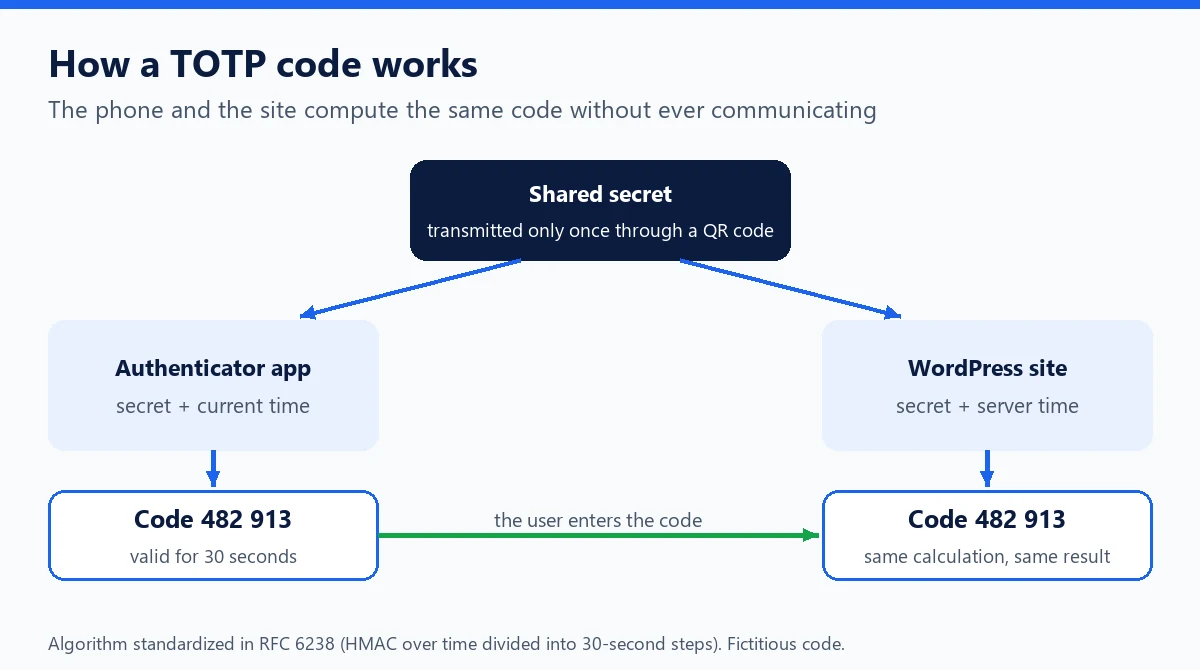
- On activation, the site generates a secret and displays it as a QR code. You scan it once.
- From then on, the app and the site each compute the code from the secret and the time, split into 30-second steps (the RFC default).
- Servers usually accept one step of drift to tolerate a small clock difference. If codes keep getting rejected, check the phone's time first.
Pros: free, works offline, no SMS or email involved. Limitation: a phishing site that imitates your login page can ask for the code and reuse it within seconds.
Backup codes
A lost phone should not mean a lost site. Backup codes are a list of single-use codes generated on activation. Store them away from your phone: in a password manager, a safe, or a printed copy put away somewhere. Each code works only once; regenerate the list when it runs out.
Passkeys
Passkeys are based on the W3C WebAuthn standard. Instead of a shared secret, the device creates a key pair: the private key stays on the device (or in the synced keychain), and the site only knows the public key. At login, the device signs a challenge after a local unlock (fingerprint, face, PIN).
Their decisive advantage: the key is bound to the site's domain name. On a fake site, there is simply no key to use, which makes them phishing-resistant. The WordPress documentation recommends them for this reason.
There are two families. Synced passkeys (phone keychain or password manager) are available on all your devices and survive the loss of one of them. Device-bound passkeys (hardware security key) cannot be copied. NIST (SP 800-63B-4, August 2025) accepts syncable authenticators at AAL2, but not at the highest level, AAL3.
On WordPress, passkeys still require plugins: for example the Two-Factor plugin published under the WordPress.org account, extended with WebAuthn Provider for Two Factor.
Methods to avoid
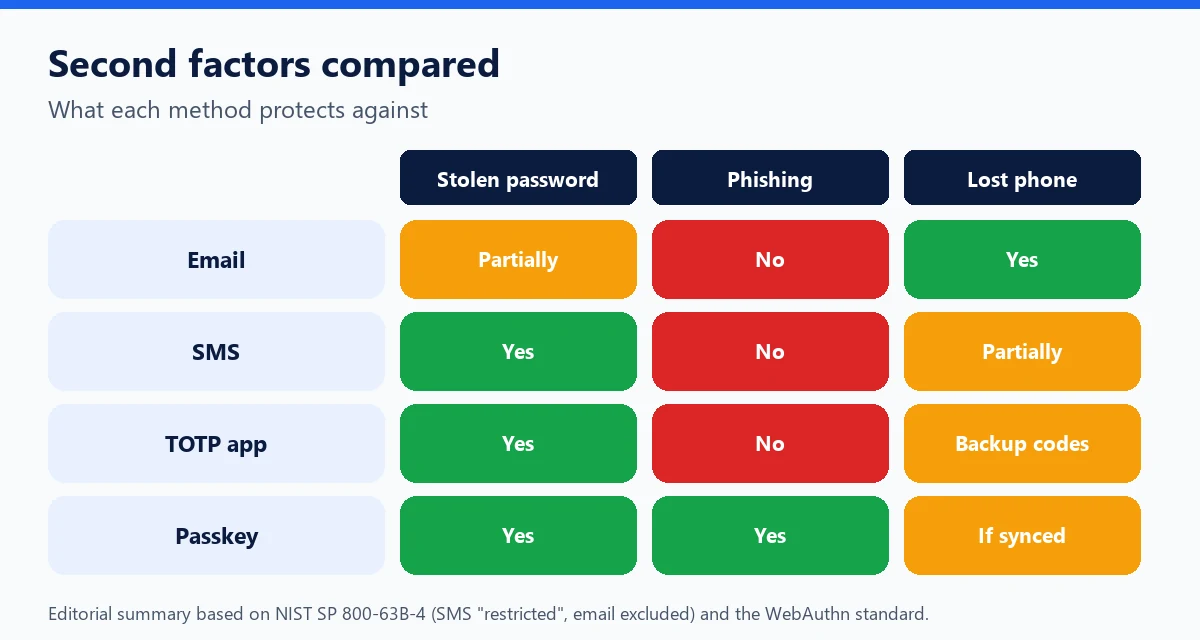
- Codes by email: if the mailbox is compromised, or shares the same password, the second factor falls along with the first. NIST excludes email as an out-of-band authentication channel.
- SMS: NIST classifies it as a "restricted" authenticator because of the risks of interception and number hijacking (SIM swapping). Better than nothing, but best avoided for administrators.
| Method | Resists a stolen password | Resists phishing | Cost | For whom |
|---|---|---|---|---|
| Code by email | Partially | No | Free | Customers, if nothing better is available |
| SMS | Yes | No | Depends on the service | Avoid for administrators |
| TOTP app | Yes | No | Free | Every account on the site |
| Synced passkey | Yes | Yes | Free | Administrators comfortable with their devices |
| Hardware security key | Yes | Yes | Buying a key (plan for two) | The most sensitive accounts |
Rolling it out by role
Requiring two-factor authentication for everyone at once creates lockouts and support requests. Go by risk level:
- Administrators: mandatory, no exceptions. This is the account that can do anything, including installing code.
- Editors and shop managers: mandatory, after an announced preparation period.
- Authors and contributors: strongly recommended, mandatory if the site has many outside writers.
- Subscribers and customers: offered, rarely enforced.
During the rollout:
- let users know in advance, with a short illustrated procedure and a list of compatible apps;
- make sure everyone has saved their backup codes;
- designate at least two administrators who can reset another user's two-factor authentication;
- document the emergency procedure (FTP or hosting control panel access, a fallback constant if the plugin provides one).
Don't forget application passwords
WordPress application passwords (since version 5.6) are used for the REST API and XML-RPC. They do not go through the login screen, so depending on the plugin you use, they may bypass the second factor. That is useful for integrations, but each one must be justified: take inventory in user profiles and revoke the ones no longer in use.
With WP Feint
WP Feint Pro includes two-factor authentication with a TOTP app. The QR code is generated on your site, without sending the secret to an outside service, and the secret is stored encrypted. Ten single-use backup codes are provided on activation and stored hashed. The Protection tab lets you make it mandatory by role: affected users are sent back to their profile until they have set it up. After five wrong codes, the account must wait between attempts, and those failures count toward login attempt limiting. A protected account only accepts application passwords on XML-RPC and the REST API. As a last resort, the WFP_DISABLE_2FA constant in wp-config.php suspends two-factor authentication for the whole site. The plugin does not handle passkeys: for those, a dedicated plugin is still required.
Two-factor authentication is only one of the seven protection layers described in our complete method to secure WordPress.
Read also: Build a WordPress membership site and manage roles and users.
Read also: How to secure the WordPress login page: the complete guide.
Key takeaways
- WordPress core does not provide two-factor authentication: you need a plugin.
- TOTP (RFC 6238) is the baseline method: free, works offline, and should be paired with backup codes.
- Passkeys are the only method that resists phishing, thanks to their binding to the domain name.
- Avoid email and SMS for administrators.
- Roll it out by role, starting with administrators, and take inventory of application passwords.
Sources
- WordPress Developer Resources: Brute Force Attacks (2FA and passkeys) (opens in a new tab)
- IETF: RFC 6238, TOTP: Time-Based One-Time Password Algorithm (opens in a new tab)
- NIST SP 800-63B-4: Authentication and Authenticator Management (August 2025) (opens in a new tab)
- NVD: CVE-2024-10924 (Really Simple Security two-factor authentication bypass) (opens in a new tab)
Other sources consulted: official documentation and official vendor pages.