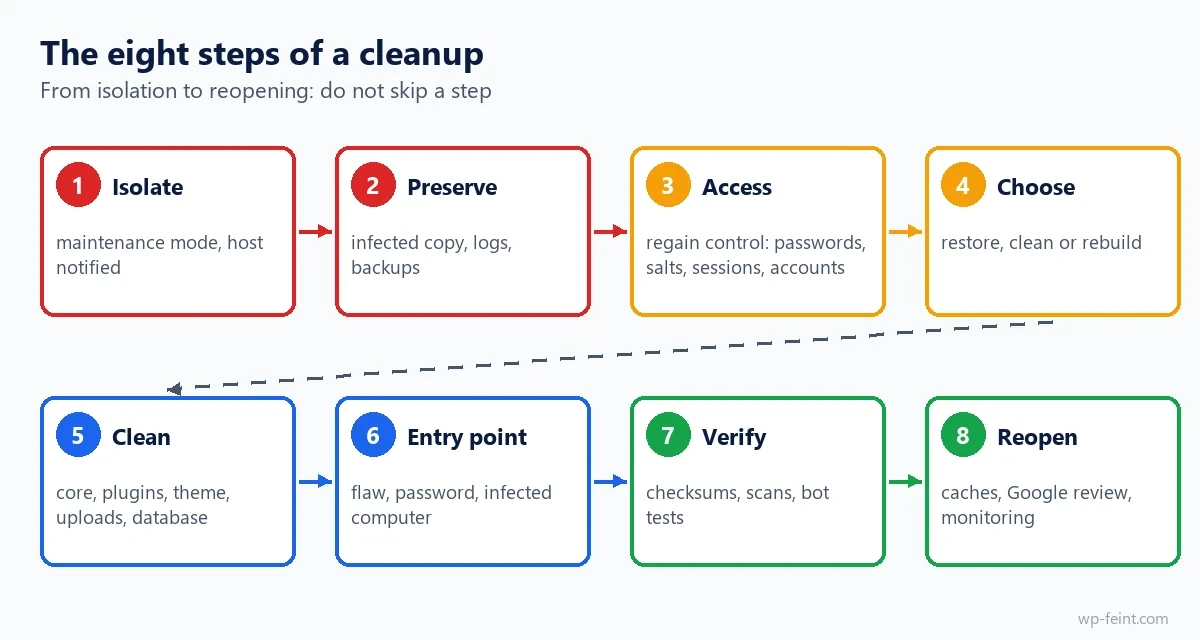
A confirmed hack often triggers hasty moves: deleting the suspicious file, reinstalling a plugin, reopening the site that same evening. The site is then reinfected a few days later, because a backdoor or the original flaw was left in place. Here is an eight-step procedure, based on WordPress.org documentation and the CERT-FR incident response sheets, to regain control, clean up without destroying evidence and reopen without unpleasant surprises.
If you are not yet sure it is a hack, start with the signs and checks for a hacked WordPress site.
Before touching the site: start an incident log
From the start of an incident, CERT-FR recommends keeping an incident log: one line per action or event, with the date and time (including time zone), who did it and a description. Store it off the compromised server. You will need it for your host, your insurer, a contractor, a police report or a notification to the CNIL (the French data protection authority). The WordPress.org FAQ gives the same advice: write down what you observe, when, and any recent changes (plugin installed, theme modified).
Step 1: isolate the site
In its containment sheet for website defacement, CERT-FR makes taking the site offline, regaining control of the admin area and preserving traces the top priorities. In practice:
- Put the site into maintenance with a static HTML page served by the web server, not by a WordPress plugin: the compromised PHP code must no longer run for visitors.
- Notify your host. On shared hosting, other sites on the same account may be affected, and the host has sometimes already suspended the site.
- Keep an administrative access path (SFTP, SSH, control panel): you will need it for what follows.
- If the site sits behind a CDN or a cache, the hacked version may still be served from that cache: purge it once the maintenance page is in place.
Step 2: preserve evidence and backups
Before deleting anything, make a full copy of the infected state: files, database and server logs. WordPress.org explicitly recommends this, even for an infected site, and CERT-FR suggests moving the affected content into a folder prefixed "INCIDENT" out of reach of the web server. Also put your existing backups somewhere safe (offline or exported): they may be compromised and must not be restored to production before analysis.
# Copy the files and the database, outside the web root
tar czf ~/incident/infected-site-$(date +%F).tar.gz -C /path/to/site .
wp db export ~/incident/infected-db-$(date +%F).sql --skip-plugins --skip-themes
The global options --skip-plugins and --skip-themes prevent the plugins and theme from loading, and therefore prevent malicious code from running with every WP-CLI command. Keep them on throughout the cleanup. They do not neutralize plugins in the mu-plugins folder, which you should inspect first.
Step 3: regain control of access
Change every access point, not just the WordPress password:
- Hosting control panel accounts, SFTP or FTP, SSH (and authorized keys), the database user (to be updated in
wp-config.php). - Every WordPress account with an administrator or editor role; delete unknown accounts after recording them in the incident log.
- The keys and salts in
wp-config.php, to invalidate everyone's login cookies, including the attacker's. - Third-party access: Search Console owners, API keys (payments, email delivery), WordPress application passwords.
# New keys and salts in wp-config.php
wp config shuffle-salts

# Administrators and creation dates
wp user list --role=administrator --fields=ID,user_login,user_email,user_registered --skip-plugins --skip-themes

# Close every session for every user
wp user list --field=ID --skip-plugins --skip-themes | xargs -n 1 wp user session destroy --all --skip-plugins --skip-themes
Do this from a clean computer: the WordPress.org FAQ points out that some intrusions begin with a Trojan on the administrator's computer that captures FTP or admin credentials. And plan to change these passwords a second time once the site is clean.
Step 4: restore, clean or rebuild
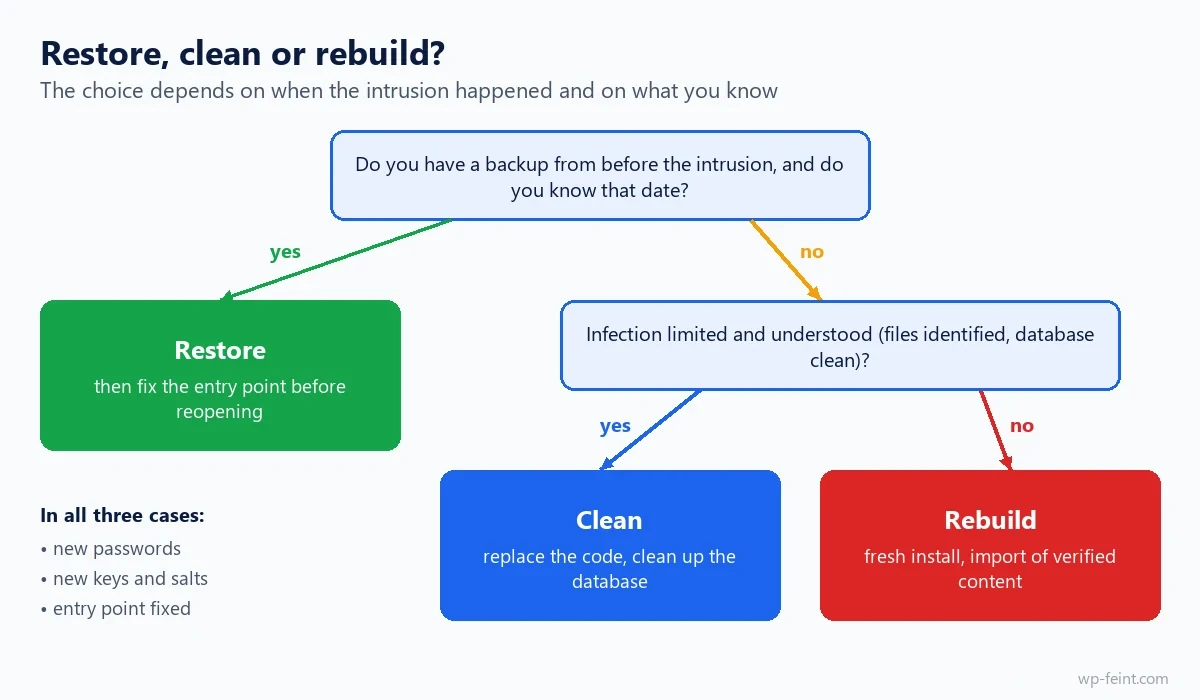
| Strategy | When to choose it | Advantage | Main risk |
|---|---|---|---|
| Restore a backup | Intrusion date known (logs) and backup clearly older | Fast, known state | Restoring a backup that is already infected; losing recent content |
| Clean in place | Limited infection, files identified, healthy database | Keeps all the content | Missing a backdoor |
| Rebuild | Old intrusion, multiple backdoors, modified database | Safest in the medium term | Takes longer; content must be reimported and checked |
Whatever the strategy, restoring without fixing the original flaw only puts the site back in the state that allowed the intrusion.
Step 5: clean up, location by location
WordPress core
WordPress.org advises against using the reinstall button in the admin area: it overwrites existing files but leaves files added by the attacker. Delete wp-admin and wp-includes, then download exactly the same version:
VERSION=$(wp core version --skip-plugins --skip-themes)   # installed version
rm -rf wp-admin wp-includes
wp core download --version="$VERSION" --skip-content --force
wp core verify-checksums --include-root
The --skip-content option avoids reinstalling the default themes and plugins, and --force overwrites the files in the root. The final check flags unknown files left in the root.
Plugins, themes and the rest of wp-content
| Location | Action | What to watch for |
|---|---|---|
wp-content/plugins | Delete and reinstall each plugin from wordpress.org or the vendor | Delete any unknown or unused plugin |
wp-content/themes | Reinstall the theme; carry over child theme changes after reviewing them | functions.php is a common hiding place |
wp-content/mu-plugins | Empty it except for known, justified files | Loaded automatically, invisible in the usual plugin list |
wp-content/uploads | Delete any .php file; check .htaccess files | Media never contains legitimate PHP |
wp-config.php, .htaccess | Review line by line | Includes, redirects, obfuscated code |
| Database | Check wp_options, wp_posts, wp_users, cron jobs | Scripts injected into content, unknown options |
To spot obfuscated code, Sucuri lists the functions that are commonly abused: eval, base64_decode, gzinflate, str_rot13, assert. Legitimate plugins use them too: a match is a lead, not proof.
grep -rlE "eval\(|base64_decode\(|gzinflate\(|str_rot13\(" wp-content/ --include=*.php
find wp-content/uploads -type f -name "*.php" -print
wp db search "<script" --skip-plugins --skip-themes
wp cron event list --skip-plugins --skip-themes
Step 6: find the entry point
This is the step most often skipped, and the reason for reinfections. Cross-reference the incident log, the access logs and the file dates to identify the most likely cause:
- A vulnerable plugin or theme that was not updated: look up the installed version in vulnerability databases (WPScan, Wordfence Intelligence, Patchstack).
- A weak or reused password: the first successful POST requests to
wp-login.phporxmlrpc.phpjust before the intrusion. - An infected workstation or stolen FTP credentials: file changes with no matching web request.
- A compromised neighboring site on the same hosting account.
Steps 7 and 8: verify, then reopen
- Run
wp core verify-checksums --include-rootandwp plugin verify-checksums --allagain, then a server-side scanner. - Test the site with
curl, imitating a visitor coming from Google and a search engine crawler, to detect any remaining cloaking. - Update core, plugins, themes and PHP, then change the passwords again, as WordPress.org recommends.
- Remove the maintenance page and purge every cache (plugin, server, CDN).
- In Search Console, request a review only once every issue is fixed on every page. Google says a review can take from a few days to a few weeks, and that you should not resubmit a request in the meantime.
Obligations not to forget
| Situation | Action | Deadline or benchmark |
|---|---|---|
| Personal data exposed (customer accounts, forms) | Notify the CNIL if the incident poses a risk to individuals | Without undue delay, no later than 72 hours after discovery, otherwise justify the delay |
| High risk to individuals | Inform the people concerned (GDPR Article 34) | Without undue delay |
| Any breach, even if not notified | Internal documentation of the incident | Always |
| Need help, filing a complaint | 17Cyber (Police, Gendarmerie and Cybermalveillance.gouv.fr) | Online service |
After reopening: stop finding out about a hack by chance
Most site owners learn about a hack from a customer or from Google. WP Feint Pro adds a core integrity check, email alerts, two-factor authentication and login attempt limiting, along with an administrator activity log and vulnerable plugin alerts. The plugin does not disinfect a site and does not fix plugin flaws: it reduces the visible attack surface and warns you sooner. To scan files after the cleanup, pair it with a malware scanner: our comparison of the best WordPress security plugins shows which ones include one.
Before cleaning up, identify every infection present with our eight-point detection guide.
Read also: WordPress site hacked: how to respond and fix it.
Key takeaways
- Isolate the site with a static page and copy the infected state, logs included, before deleting anything.
- Change every access (host, SFTP, SSH, database, WordPress), regenerate the salts, close sessions, then change the passwords again once the site is clean.
- Replace core, plugins and theme with official copies instead of "repairing" files one by one.
- Do not reopen until you have identified and fixed the entry point.
- Personal data affected: notify the CNIL within 72 hours if the incident poses a risk.
Sources
- WordPress.org: FAQ My site was hacked (opens in a new tab)
- CERT-FR: incident response sheet, Défiguration de site web, Endiguement (CERTFR-2024-RFX-008) (opens in a new tab)
- CERT-FR: incident response sheet, Défiguration de site web, Qualification (CERTFR-2024-RFX-007) (opens in a new tab)
- Cybermalveillance.gouv.fr: incident response sheet, Défiguration de site Internet (opens in a new tab)
Other sources consulted: official documentation and security research publications.