What this module does
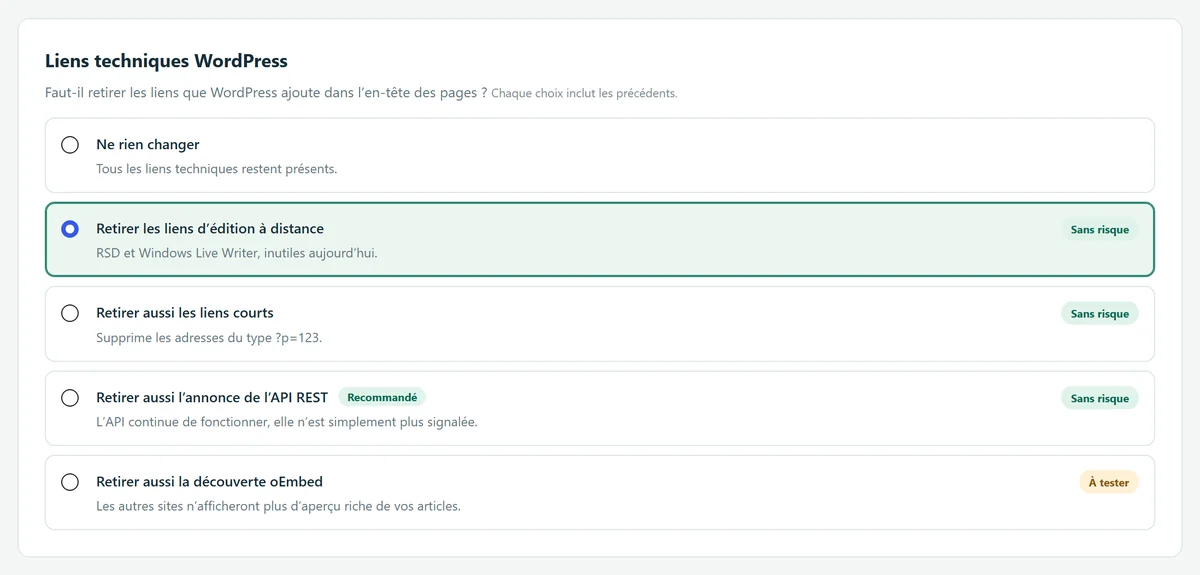
In the HTML head of every page, WordPress advertises several technical URLs: remote publishing (RSD, Windows Live Writer), a shortlink like ?p=123, the REST API announcement, and oEmbed discovery. These links rarely do anything for your visitors, but they tell bots loud and clear that your site runs on WordPress.
The WordPress technical links module (called “Discovery” in the guide) removes them, from the most useless to the most impactful.
As soon as WordPress is hidden, the free version also removes the HTML comments and generator tags left by plugins (Yoast SEO, Site Kit, Elementor, cache plugins...): see below.
Why it helps
These links are among the first clues detection tools read. Removing them completes the imitation of another CMS: a site that claims to be Drupal but keeps wp-json links in every page is quickly unmasked.
Levels
| Option | Effect | Version |
|---|---|---|
| Remove nothing | All technical links stay in place. | Default |
| Remove remote publishing links | RSD and Windows Live Writer, which are obsolete today. | Free feature |
| Also remove shortlinks | Removes URLs like ?p=123. | Free feature |
| Also remove the REST API announcement | The API keeps working; it’s simply no longer advertised. | Pro feature |
| Also remove oEmbed discovery | Other sites will no longer show rich previews of your posts. | Pro feature |
Free or Pro
In the free version Free feature
- Removes remote publishing links (RSD, Windows Live Writer)
- Removes shortlinks (?p=123)
- Plugin HTML comments and generator tags removed (as soon as WordPress is hidden)
With WP Feint Pro Pro feature
- Removes the REST API announcement (<link> tag and HTTP Link header)
- Removes oEmbed discovery
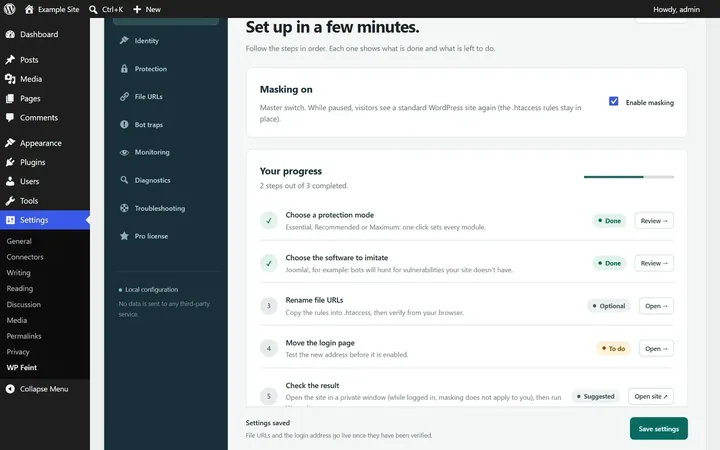
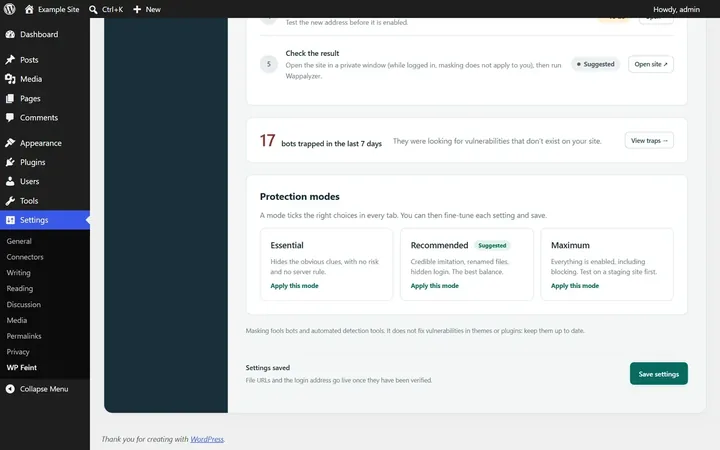
The Essential, Recommended, and Maximum modes set this module to levels 2, 3, and 4. Without Pro, the Recommended and Maximum modes stop at level 2.
Plugin HTML comments and generator tags
As soon as WordPress is hidden (Identity module at level 1 “Hide WordPress” or above, so in all three modes), the free version also removes the <meta name="generator"> tags and the signed HTML comments that well-known plugins and themes add to public pages. These signatures often give the plugin’s name and version, and they are enough for detection tools to recognize WordPress. This feature depends on the Identity module, not on the levels of this module.
- SEO: Yoast SEO, Rank Math, All in One SEO, The SEO Framework.
- Analytics, tags and consent: Site Kit by Google, MonsterInsights, ExactMetrics, GTM4WP, WP Statistics, Matomo, Meta pixels, Complianz, Jetpack.
- Cache and performance: WP Super Cache, W3 Total Cache, LiteSpeed Cache, WP Fastest Cache, Hummingbird, WP-Optimize, Autoptimize; WP Rocket (comment replaced by a generic text).
- Page builders, themes and frameworks: Elementor, WPBakery, Slider Revolution, Divi, Redux.
- Commerce, languages and forms: WooCommerce, WPML, WPForms, Smash Balloon, and WordPress itself.
Method: each plugin’s official setting first (a filter, option or constant provided by its developer), which also applies to the page the cache stores; then an output filter on public pages requested with GET or HEAD; finally the cache plugin’s last filter for LiteSpeed Cache and Hummingbird. Your saved settings are not changed. Kept in place: the imitated software’s generator tag, the content of scripts (JSON-LD included) and styles, conditional comments and cache markers.
Option: “Remove all HTML comments from public pages” (Identity tab, off by default) also removes your theme’s neutral comments.
Limitations:
- Breeze writes its comment into its cache file, with no setting: it is not removed.
- WP Rocket does not allow its comment to be removed:
<!-- Cached for great performance -->remains, with no plugin name. - Pages cached before activation keep their comments until the cache is purged (“Purge caches” button, Diagnostics tab).
- HTTP headers, CSS classes, JavaScript variables, file URLs and the ?ver= parameter are not affected. Logged-in visitors see the pages without masking.
The plugin-by-plugin details, with the exact strings removed and how to check your site, are in our article HTML comments and generator tags: erase the traces of WordPress.
Limitations and precautions
Frequently asked questions
Do I need to configure Yoast SEO, Elementor or my cache plugin to remove their comments?
No. Feint Security turns on their official setting itself while public pages are displayed, without changing your saved settings. Just purge the caches after activation.
Can removing these comments break my site?
The content of scripts, styles and JSON-LD is never modified, and the markers cache plugins need (noptimize, mfunc, esi...) are kept. On any error, or for a page larger than 4 MB, the page is sent unchanged.
Why do I still see the comments in the source code?
Logged-in administrators see the pages without masking, and a page cached before activation keeps its comments until the cache is purged. Check in a private browsing window after purging the caches.
Start free, upgrade to Pro when you’re ready
The free version already hides WordPress, moves the login page, blocks XML-RPC and counts bots. Pro locks down logins, renames file URLs and monitors your sites for you: known vulnerabilities, core integrity, activity log, email alerts and the update status of all your sites in your member area. From €59 per year excl. tax, far less than the cleanup offers whose prices we checked. Compare the costs.