
Updating a plugin directly on the live site means running the test in front of your customers. A staging site moves that risk onto a copy: same PHP version, same plugins, same data or close to it, but a separate address and restricted access. If the update breaks a page, nobody but you sees it.
How a staging environment works
The cycle takes only a few steps: copy the live site to staging, apply and test the changes there, then repeat on production whatever passed. The copy has to resemble the original as closely as possible, or the test proves nothing: a test site on another PHP version or without the same cache may work fine while production fails.
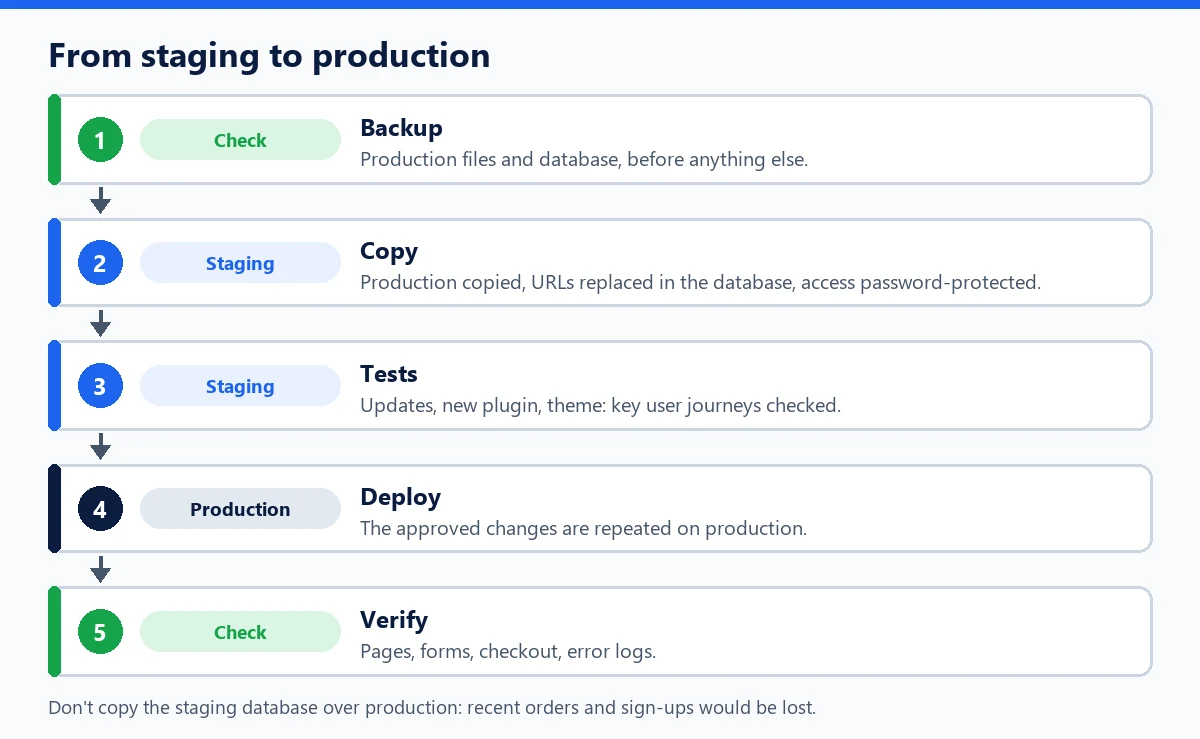
Many hosts offer one-click staging. Otherwise, a migration plugin or WP-CLI will do the job. When copying, the site URLs have to be replaced in the database. The wp search-replace command does this while handling PHP serialized data, which a plain text replace in an SQL export would break; its --dry-run option shows what would change without saving anything.
Telling WordPress it's on staging
Since WordPress 5.5, the wp_get_environment_type() function returns the environment type: local, development, staging or production, the last one being the default. You set it with the WP_ENVIRONMENT_TYPE constant in wp-config.php, and plugins use it to adjust their behavior.
define( 'WP_ENVIRONMENT_TYPE', 'staging' );For WordPress
- Restrict access with an HTTP password or by IP address. The WordPress setting that asks search engines not to index the site doesn't keep anyone out: it mainly prevents indexing of duplicate content.
- Turn off anything outbound: customer emails, real payments, syncs with external services, and cron jobs that could send messages or change remote data.
- Don't push the staging database over production on a live site: orders, comments and sign-ups that came in meanwhile would be lost. Repeat the changes instead.
- Test security too: new login URL, server rules, headers. Our WordPress staging guide walks through the method, and the article on automatic updates helps you decide what can skip it.
- Keep a backup of production before every deployment, following the 3-2-1 rule.
Common mistakes
Leaving an old staging site online, never updated, with the same administrator accounts as the real site: it's a second way in, and an easily forgotten one. Delete the copies you no longer need.