

PHP is an interpreted language: before running a file, it reads it, parses it and translates it into internal instructions, the opcodes. Without a cache, this work is redone on every request, for every file loaded. The PHP documentation sums up OPcache's role this way: it stores precompiled script bytecode in shared memory, removing the need for PHP to load and parse scripts on each request.
How OPcache works
OPcache is an extension bundled with PHP, loaded with the zend_extension directive. The first time a file runs, its opcodes are placed in shared memory. Later requests reuse them directly, whichever PHP-FPM worker handles them, since the memory is shared by the processes under the same master.
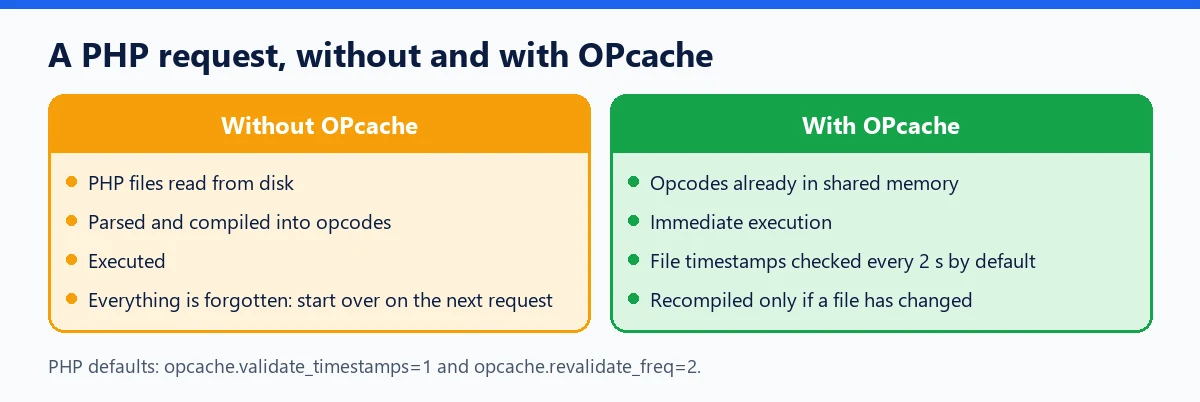
To pick up changes, OPcache checks file timestamps every two seconds by default (opcache.revalidate_freq=2). If you turn this check off (opcache.validate_timestamps=0), a possible gain in production, file changes are no longer seen until the cache is cleared with opcache_reset() or by restarting PHP.
Useful settings
Default values documented by PHP:
opcache.memory_consumption: 128 MB of shared memory;opcache.max_accelerated_files: 10,000 files at most;opcache.interned_strings_buffer: 8 MB for interned strings;opcache.revalidate_freq: 2 seconds.
A WordPress site with a page builder, WooCommerce and twenty or so plugins can exceed the planned number of files or memory. Beyond that, some scripts are no longer cached and the gain erodes. The opcache_get_status() function or a diagnostic plugin shows how full the cache is.
Since PHP 7.4, preloading (opcache.preload) loads files when PHP starts. It isn't available on Windows and needs a restart to be updated: it suits frozen applications better than a WordPress site that updates often.
For WordPress
The WordPress documentation recommends adding an opcode cache such as OPcache to greatly improve PHP performance. It complements, rather than replaces, the page cache and the object cache: OPcache skips code compilation, the object cache skips database queries, and the page cache skips running PHP.
- On shared hosting, OPcache is normally enabled; check with phpinfo() or in your control panel's PHP settings.
- On a VPS, adjust the memory and number of files to the actual size of your sites.
- When upgrading to a new PHP version, reload PHP-FPM to start from a clean cache; it's also the time to check that the branch you chose is still supported (see end-of-life PHP versions).
Security
On a shared server, the cache is common to all pools under the same PHP-FPM master. Directives such as opcache.validate_permission and opcache.validate_root exist to check permissions on cached files and prevent collisions in chroot environments. The opcache.restrict_api directive limits use of the OPcache functions to a given path, so that an arbitrary script can't clear the cache. These settings complement those in our guide to hardening PHP.
Common mistakes
Turning off validate_timestamps and then not understanding why a file change doesn't show up; leaving the default memory on a large site; thinking OPcache replaces a page cache.